
It’s time for Apple to get into the… fold… with foldables. Anyways, on the day of the announcement, Cupertino and Friends™️ dropped six new videos over developing, designing, and crafting great apps for the nascent device:
- Design for iPhone Duo
- Prepare your app for iPhone Duo
- Raise the bar with iPhone Duo
- Strike a pose with adaptive layouts on iPhone Duo
- Leverage multiple displays and scenes on iPhone Duo
- Build a great camera experience for iPhone Duo
And there’s some ground to cover, because it seems like this thing can contort your app’s layout about 7,000 different ways:
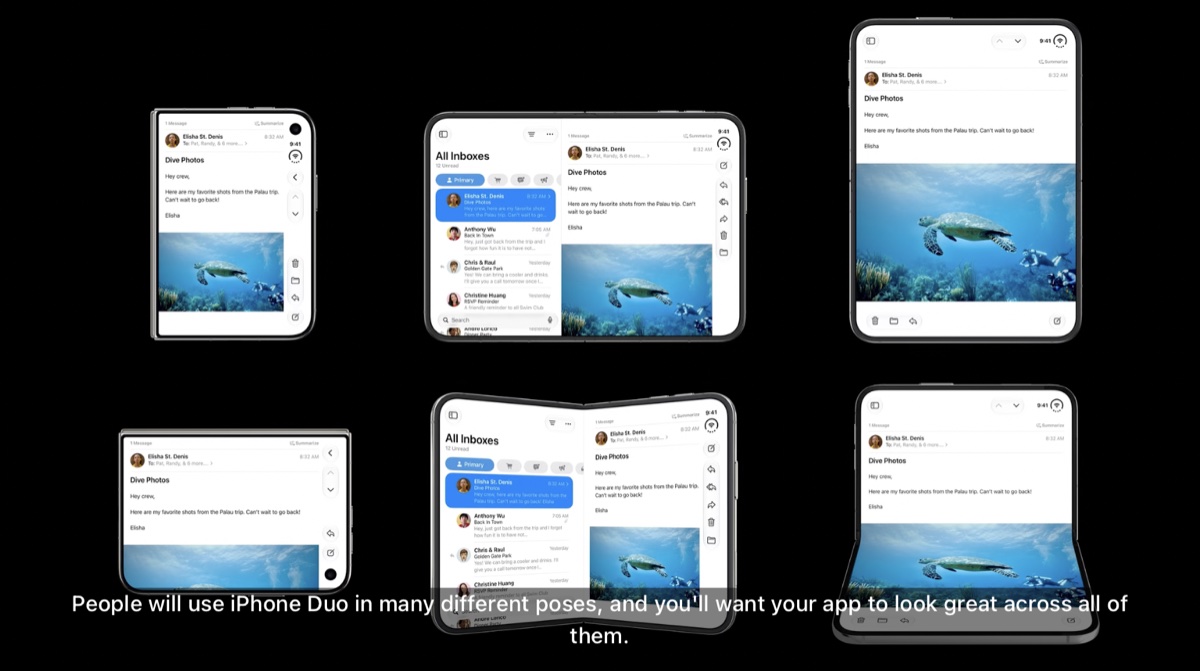
I’ve only watched one, and the other five are next for me to marathon, but in the interim I had Astra check out each one because I’m excited and impatient. Here’s what it thinks the critical things to know are, with the obvious caveat that this is at the discretion of an agent.
let concatenatedThoughts = """
These takeaways come from Apple's English video captions. Some new iOS 27.1 API reference pages weren't available at writing; documentation links below point to available references, with timestamps for the new APIs.
"""
The following section was generated by Astra from Apple's video captions. Follow the linked videos and documentation for the original guidance.
Build With iOS 27.1
Existing apps run, but rebuilding with the iOS 27.1 SDK enables edge-to-edge content and vertical bars. Use Xcode 27.1’s Device Hub to test opening, closing, rotating, and partially folding; its updated App Resizability skill also covers SwiftUI and Duo.
- Video: Prepare your app — 0:30
- Video: App Resizability skill — 9:12
- Docs: Device Hub
Size Classes Beat Device Assumptions
Duo remains an iPhone even when its inner display has regular width and height size classes. Use size classes and local view or scene geometry; avoid layout branches based on idiom, interface orientation, or UIScreen.main. The inner display doesn’t honor supported interface orientations for normally resizable apps.
- Video: Prepare your app — 2:46
- Docs: horizontalSizeClass
Keep the Same App Inside and Out
Use the extra space for columns or richer navigation while preserving the same hierarchy and functionality across poses. NavigationSplitView and UISplitViewController adapt automatically. A tabletop layout can put media above controls, but opening or folding the phone shouldn’t be required to access a feature.
- Video: Design for iPhone Duo — 3:42
- Video: Inner display layouts — 7:34
- Docs: NavigationSplitView
Safe Areas Are Asymmetric
Vertical controls can occupy either edge, especially in Split View. Handle each safe-area inset and layout margin independently: keep interactive content inside, let backgrounds extend behind bars, and test your app on both sides of the inner display.
Let Containers Move Your Bars
Use bars managed by navigation and tab containers; standalone UIKit bar instances don’t participate in the new vertical layout. Supply both titles and symbols so the system can choose a representation. Custom controls need an explicit vertical opt-in and must fit the bar’s fixed width; meaningful text can stay horizontal.
- Video: Raise the bar — 2:00
- Video: Toolbar content and axis behavior — 5:56
- Docs: ToolbarItem
Decide What Overflows First
Toolbars compress before tabs by default; task-focused screens can change that preference. Give frequent actions and status-bearing items higher visibility priority, and consolidate custom overflow actions into ToolbarOverflowMenu or UIKit’s additionalOverflowItems so users get one system overflow menu.
- Video: Raise the bar — 11:40
- Docs: ToolbarOverflowMenu
- Docs: visibilityPriority
Move Controls Away From the Fold
System sheets, alerts, and menus already avoid the fold. For custom layouts, query reservedRegion on GeometryProxy or UIView: division regions describe the fold, while occlusion regions describe obstructions such as the active inner camera. Reposition important controls; continuous scrolling articles, feeds, and lists don’t need displacement.
- Video: Displacement patterns — 2:26
- Video: Reserved-region APIs — 6:39
Arrangements Handle Two-View Layouts
ArrangementView and UIArrangementViewController adapt two views around available space and the fold. Choose split when both views must remain unobscured, or overlay for a foreground/background relationship. Arrangements provide layout, not navigation: avoid placing navigation containers inside them or embedding arrangements inside lists and scroll views.
Hinge Angles Drive Effects
onHingeChange and UIHingeInteraction expose discrete hinge states and continuous angles for interactions like a musical pitch bend. Handle a missing hinge on other devices and reset effects when appropriate. Use arrangements and reserved regions for layout decisions.
Multitasking Can Change Both Dimensions
Side-by-side apps reduce width; pinned Picture in Picture can reduce height. Duo also supports multiple instances of your app, but new windows can only be created on the inner display. Handle scene-request errors; UIWindowScene.ActivationAction automatically hides when opening another window is unavailable.
- Video: Design: pinned video — 3:21
- Video: Multitasking and multiple scenes — 2:59
- Docs: Supporting multiple windows
- Docs: ActivationAction
Camera Apps Can Use Both Displays
CameraCaptureAccessory can show a subject-facing preview or teleprompter on the outer display while the main camera UI occupies the inner display. It requires a full-screen app on the inner display and an active camera session. Register it with the camera view and observe availability changes.
- Video: Scene accessories — 4:22
- Background docs: Scene accessory registration
Choose Automatic Camera Switching or Full Capabilities
Front-camera discovery using wide or ultrawide types returns a virtual front camera that switches between displays automatically, limited to 1080p/60fps and no depth. Access the physical cameras individually for depth or the outer camera’s higher limits—up to 4K and 120fps—but manage switching yourself.
Camera Position Isn’t Camera Direction
A camera marked .front can face away from the person using your app. AVKit’s AVCaptureDeviceDirectionCoordinator reports direction relative to a view; use one per display view. Its callback runs on the main actor: pass the sendable AVCaptureDeviceDescriptor to your camera actor before reconfiguring capture, then update preview mirroring and UI.
- Video: Camera direction — 2:46
- Video: Actor handling and switching — 5:38
Revisit Preview Framing and Rotation
Use preview videoGravity to choose fit versus fill, and dynamic aspect ratios to exploit the square front sensors. Adopt AVCaptureDevice.RotationCoordinator for upright previews and captures across display changes; after adopting it, disable camera-sensor-orientation compensation to improve performance.
- Video: Camera preview and rotation — 7:03
- Docs: videoGravity
- Docs: Dynamic aspect ratio
- Docs: RotationCoordinator
Until next time ✌️