
Times…they are.concact(.haveBeen) changing. In years past, I’d wait for the “What’s New in UIKit” video to hit towards the end of dub dub week, pour through the new docs to see what was added, and then fumble my way around Xcode to get the first examples of the changes up and running.
And now? Well, I just…kinda, did this:
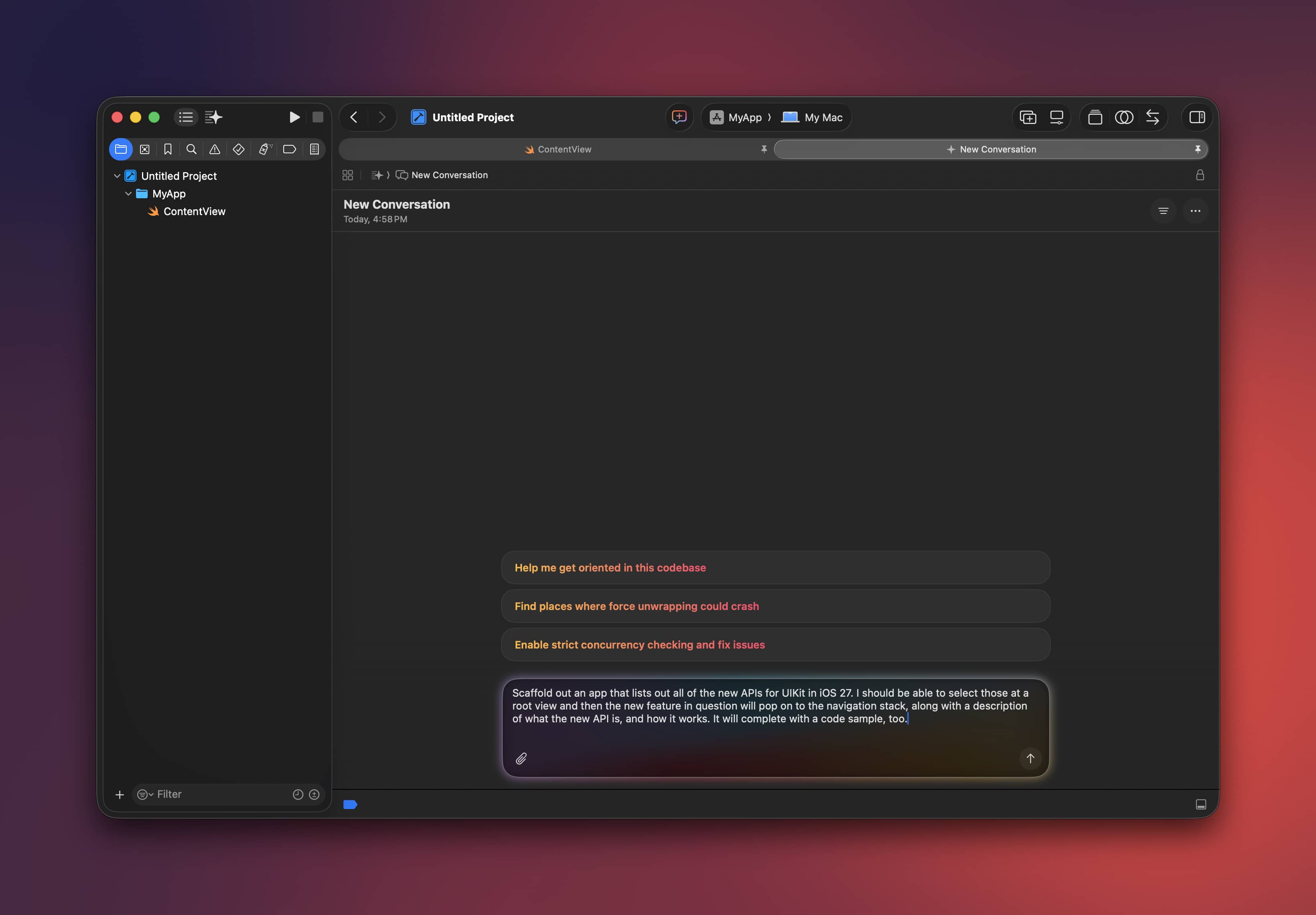
Within minutes, I now had workable code samples of all the changes, explanations of what they were, and docs. I prayed for days like this, man.
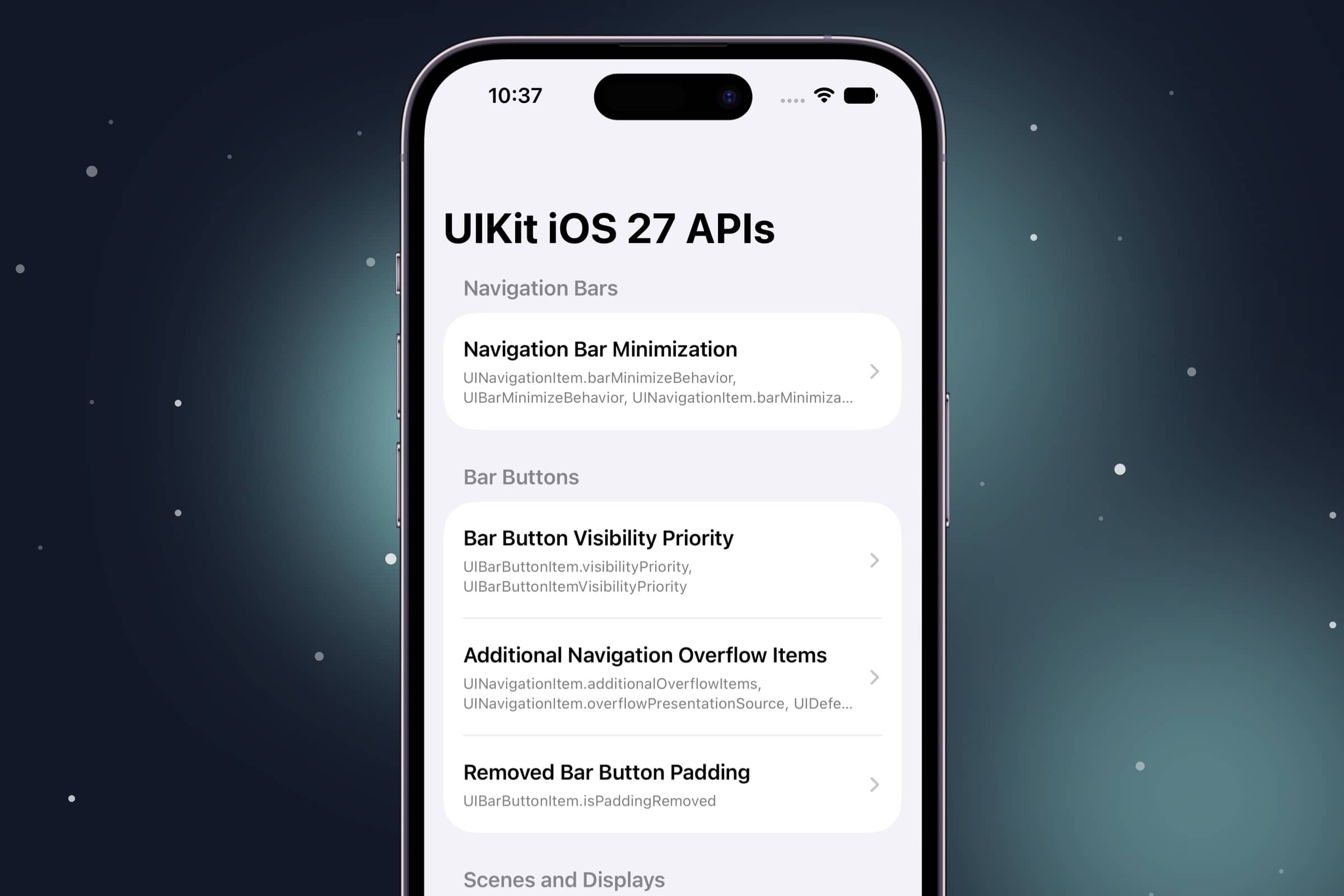
It used to take so much more work!
There’s even a skill for this sort of thing, I have to imagine Cupertino & Friends™️ made it just to throw me a bone for my annual UIKit post:
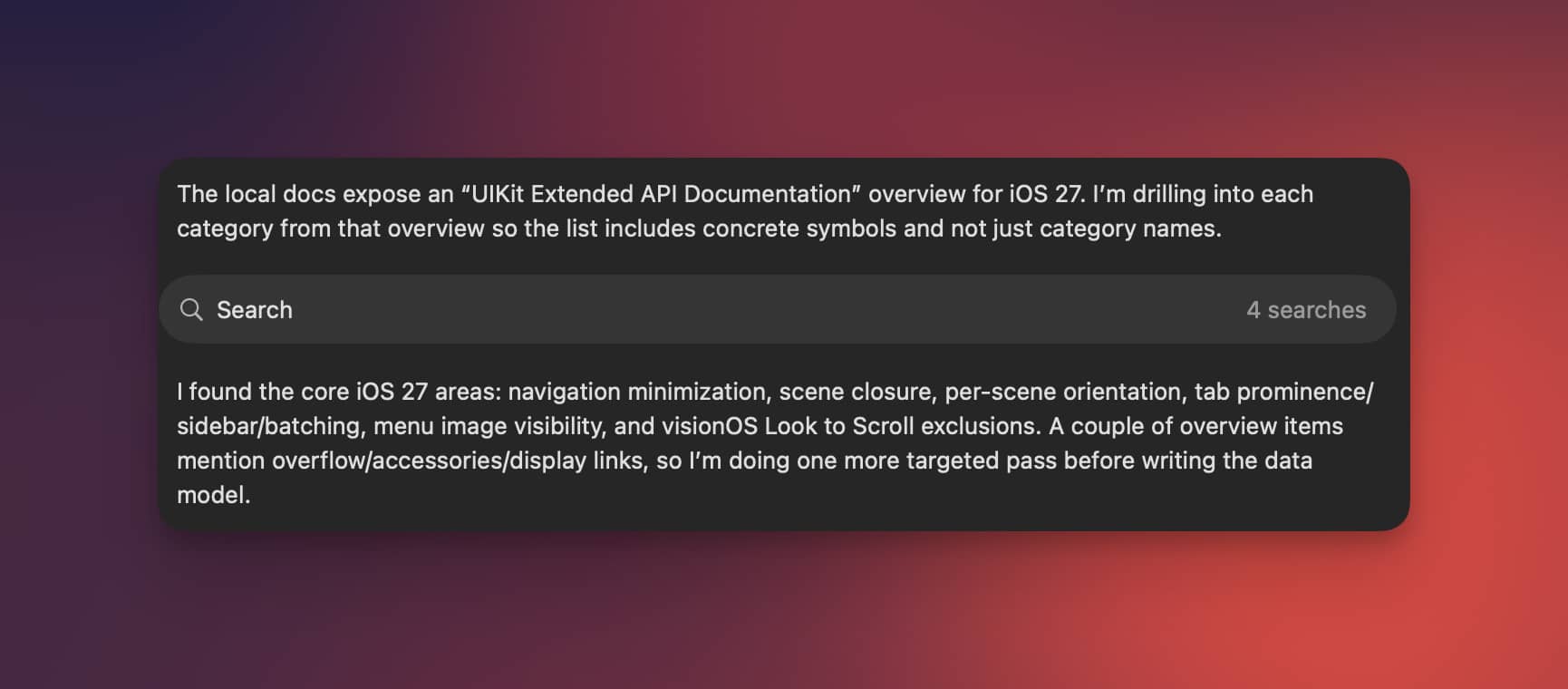
As of today, the pathway to utilizing UIKit is virtually nothing. I’d argue now is a better time than ever (yes — really!) to give our trusty ol’ UI framework a go in your app. Apple has given access to skills to do it correctly, efficiently, and quickly. So, let’s see what’s new.
If you want to catch up on this series first, you can view the iOS 11, iOS 12, iOS 13, iOS 14, iOS 15, iOS 16, iOS 17, iOS 18, and iOS 26 versions of this article.
Navigation Bar & Bar Buttons
The nav bar and its friends got quite a bit of attention, and to be honest that’s where we will find most of the changes. They adapt to all sorts of sizes and situations…hmmm, I WONDER WHY!?
Navigation Bar Minimization
Each view controller now gets a say in whether its navigation bar shrinks down as you scroll. It’s a great fit for content-heavy screens where every vertical point counts, while your settings or tool-laden screens can keep the bar pinned right where it is. There’s a companion safe-area API too, which decides whether your content slides up into the space that minimized bar leaves behind.
navigationItem.barMinimizeBehavior = .onScrollDown
navigationItem.barMinimizationSafeAreaAdjustment = .enabled
Bar Button Visibility Priority
You can now rank your bar button items, so UIKit knows which actions to hang onto longest when space gets tight. Think iPad, Stage Manager, toolbars, resizable windows, FOLDABLES, — anywhere the available bar width is a moving target. The important stuff you tagged sticks around, and the rest dips out.
saveItem.visibilityPriority = .high
shareItem.visibilityPriority = .standard
printItem.visibilityPriority = UIBarButtonItemVisibilityPriority(lowerThan: .standard)
Removed Bar Button Padding
Does exactly what it says on the tin — strips the default outer padding off a UIBarButtonItem. I guess this one would be handy when your custom bar button view already brings its own inherent spacing, or you just need things to line up a bit tighter. Just keep an eye on your touch targets, the golden 44 point rule applies:
let colorItem = UIBarButtonItem(customView: colorSwatch)
colorItem.isPaddingRemoved = true
Scenes, Windows & Orientation
Apple keeps marching toward a multi-window, resizable, scene-everywhere world, and…yeah, forget it. Because of the foldable that’s coming, that’s why. To wit, device hub makes all of this quick to test out.
Scene Closure Confirmation
Ever close a window and immediately wish you hadn’t? This lets your app throw up a system confirmation before a scene actually closes, mimicking how several web apps work today. It’s made for multi-window document, editing, or workflow-ish type apps — basically anywhere slamming a window shut could toss out unsaved work or cut off something mid-flight.
windowScene.closureConfirmation = UISceneClosureConfirmation(
    title: "Unsaved Changes",
    message: "Save before closing this window?",
    actions: [
        UIAlertAction(title: "Save and Close", style: .default) { _ in saveDocument() },
        UIAlertAction(title: "Discard Changes", style: .destructive) { _ in discardChanges() }
    ]
)
External Display Scene Accessories
A view controller can now register a secondary, noninteractive scene built for an external display. Looking at the docs, I think this would be cool for auxiallary presentation screens, dashboards, reference views, or any companion output you’d want to toss up on a connected display where touch input isn’t always required:
let configuration = UISceneConfiguration(name: "Presenter Display")
let accessory = UISceneAccessory.externalNonInteractive(sceneConfiguration: configuration)

let registration = registerSceneAccessory(accessory)
registration.isEnabled = registration.isAvailable
Per-Scene Supported Orientations
Each window scene can now declare its own supported orientations. So in a multi-window app, your video scene can stay locked to landscape while the browsing or editing scene happily rotates whichever way it likes. This flexibility is great, as I’ve had several times where one-size-fits-all orientation rules didn’t quite apply for the whole app:
func supportedInterfaceOrientations(
    for windowScene: UIWindowScene
) -> UIInterfaceOrientationMask {
    .landscape
}
Tab Bars & Sidebars
The tab bar and sidebar duo (the latter of which ditched the design from iOS 26 i loved 😢) picked up some welcome controls for steering which one shows up, and what gets the spotlight.
Prominent Tab Selection
Got one tab that matters more than the others? A UITabBarController can now crown a single tab as visually prominent — perfect for a headline action like compose, search, cart, create, or record:
tabBarController.prominentTabIdentifier = "compose"
tabBarController.setProminentTabIdentifier("inbox", animated: true)
Sidebar Preferred Placement
When only one can win, this lets a tab bar controller say whether it’d rather show up as a sidebar or a tab bar. It’s great for apps that are sidebar-first at heart, but still need to fold down gracefully to a tab bar on more compact devices or…whatever, you know at this point. I’d assume foldables:
tabBarController.mode = .tabSidebar
tabBarController.sidebar.preferredPlacement = .sidebar
Batching Tab Bar Updates
Changing a whole bunch of tab stuff at once — badges, images, ordering, prominent state — and want to dodge the flicker? Batch it. UIKit folds all of those changes into a single update pass instead of grinding through a separate layout pass for each one.
tabBarController.performBatchUpdates {
    tabBarController.tabs[0].badgeValue = "3"
    tabBarController.tabs[1].image = UIImage(systemName: "star.fill")
    tabBarController.setProminentTabIdentifier("favorites", animated: false)
}
Sidebar Availability Tracking
A simple read on whether your tab/sidebar interface actually has a sidebar available at the moment. It’s handy for adjusting your supporting UI when that sidebar slides in or out thanks to a size class change, a rotation, or a window resize.
func tabBarController(
    _ tabBarController: UITabBarController,
    sidebarAvailabilityDidChange sidebar: UITabBarController.Sidebar
) {
    tabBarController.navigationItem.leftBarButtonItem = sidebar.isAvailable ? nil : menuButton
}
Bonus Points
And, as always, then there’s the usual grab bag. Here are a few odds and ends that didn’t fit tidly into the stuff above, but are worth a look all the same.
Menu Image Visibility
Menu elements can now explicitly ask for their images to be shown, hidden, or simply left up to the system. Lean on it when the icon is the information — color swatches, say — or hide them away when icons would only add noise to an otherwise text-heavy menu.
let red = UIAction(
    title: "Red",
    image: UIImage(systemName: "circle.fill"),
    preferredImageVisibility: .visible
) { _ in applyColor(.systemRed) }

let reset = UIAction(
    title: "Reset Formatting",
    image: UIImage(systemName: "textformat"),
    preferredImageVisibility: .hidden
) { _ in resetFormatting() }
Document Launch Screen Subtitle
I mean…why not? Subtitles!
let launchOptions = UIDocumentViewController.LaunchOptions()
launchOptions.subtitle = "Create and edit presentations"

let documentViewController = UIDocumentViewController(launchOptions: launchOptions)
Final Thoughts
A few years ago, I wondered if UIKit would be deprecated altogether. That would’ve been drastic, sure, but I did wonder. These days, I don’t share the same concern anymore. SwiftUI gets better each year, and yeah — it’ll have top billing. But UIKit is solid, and it appears to be a core part of Apple’s strategy into the future.
Not much changed this year, and not much was added that’s flashy. But, that’s true of iOS 27 in several ways. This year, it’s about getting Siri right, and I think that’s the right move.
Until next time ✌️